
Other Blogs
- UpdateOct 2, 20261 min read
We now run on GPT-6.1 Sol
- UpdateOct 2, 20263 min read
New Organic Mode: AI game assets, auto rigging and animation
- UpdateSep 25, 20264 min read
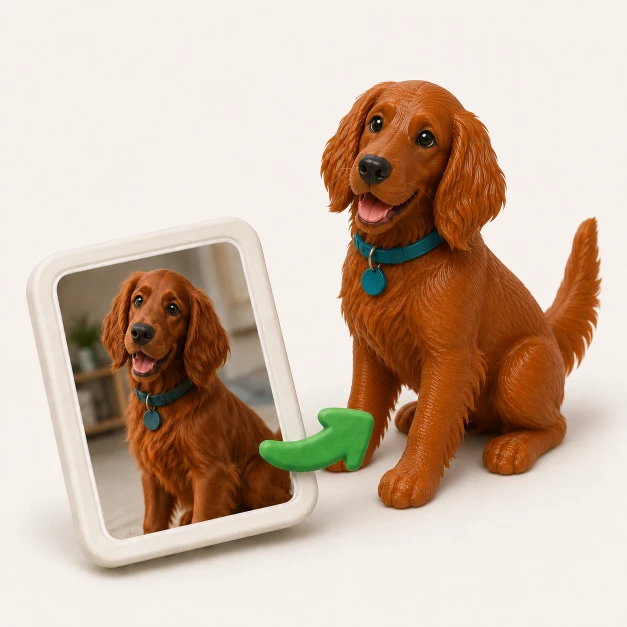
AI 3D models for game assets, renders and 3D printing
- UpdateAug 14, 20263 min read
Why we run Gemini 3.7 Flash on medium, not high
- TutorialAug 14, 20265 min read
PLA Shrinkage: How Much It Shrinks & How to Compensate
- TutorialAug 14, 20265 min read
PETG Shrinkage: How Much It Shrinks & How to Compensate
- TutorialAug 14, 20265 min read
ABS Shrinkage: How Much It Shrinks & How to Compensate
- TutorialAug 14, 20265 min read
ASA Shrinkage: How Much It Shrinks & How to Compensate
- TutorialAug 14, 20266 min read
Metric Screw Hole Size Chart (M2–M12) for 3D Printing
- TutorialAug 14, 20267 min read
3D Printing Tolerances and Clearances: A Practical Guide
- TutorialAug 14, 20266 min read
Filament Drying Temperature Chart (All Materials)
- TutorialAug 14, 20267 min read
How to Price 3D Prints (Full Cost Breakdown)
- TutorialAug 14, 20266 min read
3D Printer Calibration Guide (Step by Step)
- Jul 25, 20264 min read
Claude Opus 5 on real 3D generation
- UpdateJul 23, 20263 min read
GrandpaCAD gets a European boost: EUR 72,000 for development
- TutorialJul 14, 20266 min read
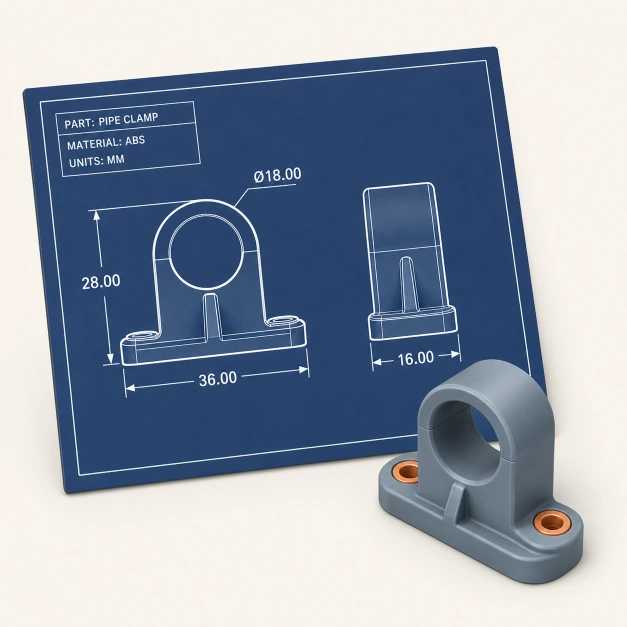
Sketch to 3D model: draw your part, add the sizes, print it
- UpdateJul 11, 20264 min read
OpenSCAD vs CadQuery vs Build123d: which CAD engine can AI actually write?
- UpdateJul 5, 20261 min read
Organic Mode just got sharper, faster, and more reliable
- FeaturedMay 19, 20263 min read
The cheatsheet I made so my grandpa can use AI CAD
- Apr 26, 20265 min read
Public LLM benchmarks are mostly garbage
- Apr 18, 20267 min read
How to make money with a 3D printer (the boring math)
- UpdateMar 29, 20264 min read
Stop Resizing AI Models. Set Your Printer Config Once.
- UpdateMar 4, 20263 min read
We upgraded to Gemini 3.1 (and why we changed our mind)
- FeaturedFeb 21, 20263 min read
Introducing Organic Mode
- Feb 20, 20263 min read
Why we're not upgrading to Gemini 3.1
- UpdateFeb 17, 20263 min read
Free 3D printing tools and calculators
- UpdateFeb 13, 20264 min read
Blender vs OpenSCAD vs JSCad vs JSON: Choosing the best LLM-to-CAD engine
- UpdateJan 29, 20262 min read
Streamlined 3D Printing with BambuLab
- TutorialDec 12, 20256 min read
Image to 3D model: photo, sketch or drawing to a printable file
- FeaturedNov 25, 20253 min read
Multi Color 3D Printing with AI
- Nov 24, 20257 min read
How GrandpaCAD works: describe, inspect, refine
- Nov 22, 20259 min read
Comparing State of the Art LLMs for 3D Generation
- Nov 5, 20259 min read
How we test the 3D modelling agent
- UpdateOct 19, 20254 min read
Migrating to Blender
- Sep 23, 20254 min read
Welcome to GrandpaCAD Beta! Here's What You Need to Know
- FeaturedAug 16, 2025Living doc
Changelog
- Jul 30, 20255 min read
Paddle vs. Polar for AI Subscriptions and Usage Based Billing
- FeaturedJun 30, 20258 min read
The state of AI CAD in 2026, from inside GrandpaCAD
- Jun 14, 20254 min read
Giving Grandpa His Creativity Back: How AI Helped Him Create Again
- Jun 1, 2025
GrandpaCAD: For Press and Media